
When importing a previously export Excel sheet containing forecasts, you receive this exact error message:
'The collaborative forecasting spreadsheet XXXXXXX is no longer the current spreadsheet and cannot be imported. Please use the current spreadsheet.'
But you are certain the spreadsheet you are trying to import is the most recently exported collaborative forecasts.
This is an error that can be caused if you have previously exported one or more collaborative spreadsheets, when your D365FO session date, or your timezone setting in User options was set so that the 'Exported date/time' shown by the audit record appears to be future dated, relative to when you created the collaborative export sheet you are trying to import.
To resolve. you can either, wait until the "Exported date/time is in the past, then export a new sheet, make changes, then reimport, or to complete the spreadsheet import immediately, first confirm the spreadsheet you are trying to import is indeed to current sheet. You can use the information sheet (tab) in that spreadsheet to confirm when this sheet was exported and other details so you can be sure it is the current spreadsheet.
Once you have done that, then use the collaborative audit form to identify which of the audit record has the "Exported date/time" set to a future date. Then select and delete the future dated audit record(s).
Then reimport you spreadsheet, which should now work.
Example of how to spot the issue:
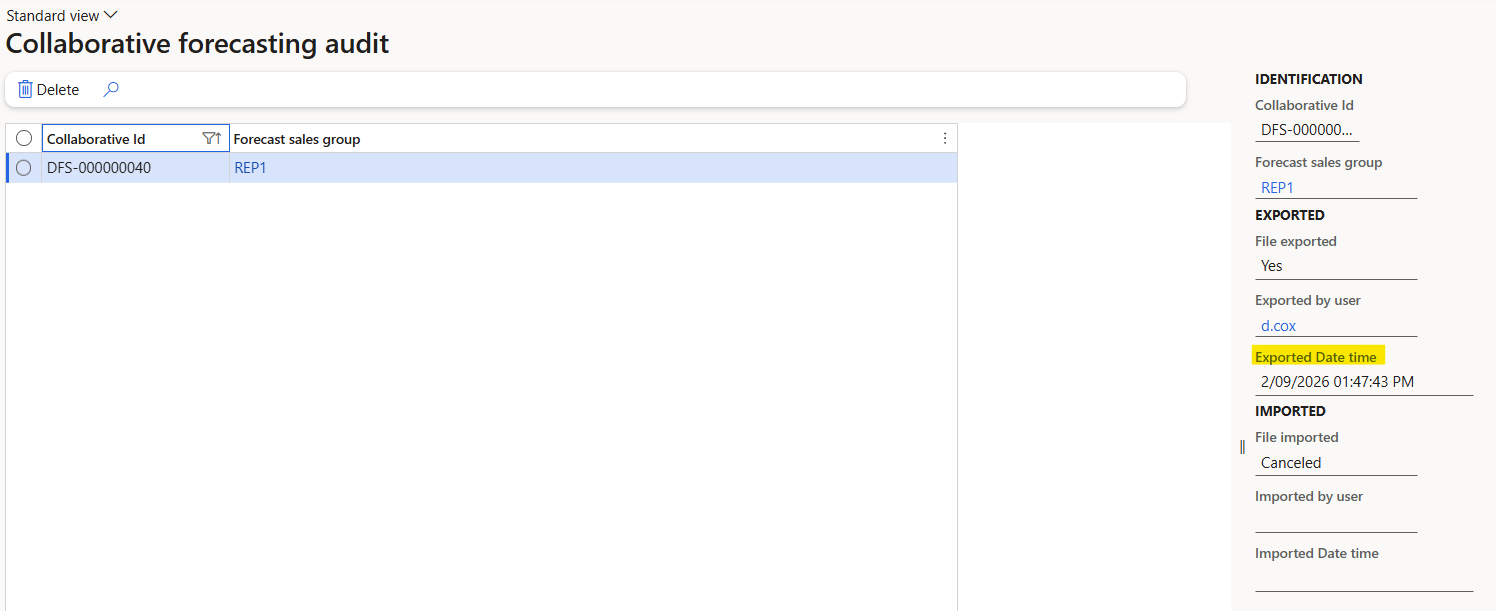
The screenshot shows a Collaborative forecasting audit record DFS-000000040, which is future dated. You can determine this from the information on the right hand pane, as the Exported Date time value shows this as "2nd of September 2026 at 1:47 PM". This export was in fact done earlier than that date/time. But because the users timezone settings were wrong the Exported date/time became "future dated".
This future dated audit record will prevent spreadsheets exported after this one (but prior to the "Exported date time") from now from being imported. You will receive the above error message if you do that.
Once the specific audit records responsible for the error were identified as the issue, and it was confirmed that the Excel spreadsheet/workbook for this specific export was not ever going to be reimported due to later exports superseding it. Then this audit record was deleted using the "Delete" menu button.
The import of the spreadsheets containing the modified forecasts could then complete without issue.